The app explained
Manual
Learn how to use Zanuli, from signing up and sharing tasks to shopping, Kitchen Display and calendars. Choose a topic in the contents. New features show the required version and whether they are still in beta.
For iPhone with iOS 17 or later and iPad with iPadOS 17 or later.

The screenshots come straight from the app and contain fictional demo data. The examples are shown in English, just like this page.
01
Registering and setting up your first group
New to Zanuli? After signing in, set your name, preferred language and first group on a single welcome screen. A group is your shared space for tasks, routines and groceries. If you have an invitation, join that group instead.
Step by step
- Sign in or register
Open Zanuli and tap Sign in or register. Create an account on the sign-in screen and follow the instructions, including email confirmation if requested. If you already have an account, sign in with it.
- Enter your name
On Welcome to Zanuli, enter the name group members will see on your tasks and actions under About you. If a name is suggested, check it and change it if needed.
- Choose your preferred language
Under Preferred language, choose Dutch, English, German, French or Spanish. This choice is used for the app and your welcome email. You can change the app language later under More → Account.
- Create your first group or use an invitation
Under Your first group, enter a recognisable name, such as Home. Already invited? Turn on I have an invitation and enter the invitation code or link. If you have already opened an invitation link, Zanuli continues that invitation without creating an extra group.
- Tap Get started
Zanuli saves your details and creates the group or processes your invitation. You can then start with your first task. The button becomes available once your name and the required group name or invitation are filled in. If saving fails, read the message and try again; when your request has been saved, the app tells you your details are retained.
- Add your household later
Invite others under More → My group. You can add children as people without a login: they do not need their own phone or email address. You do not need to set up the whole household during registration.
Add household members · Pair an iPad as a kitchen display
Good to know After setup, new accounts automatically receive a one-time welcome email in their saved language, provided mailings are enabled and the address is reachable. You do not need to wait for it to use Zanuli. New signups also receive a one-time kitchen display guide three days (72 hours) after registration, in their preferred language. The app does not need to be open. Anyone who has unsubscribed or already received this mailing will not receive it again. Use the link in any mailing to unsubscribe. An iPad used only as a kitchen display does not need its own account: choose Set up Kitchen display and pair it with an existing group.
02
Creating a task
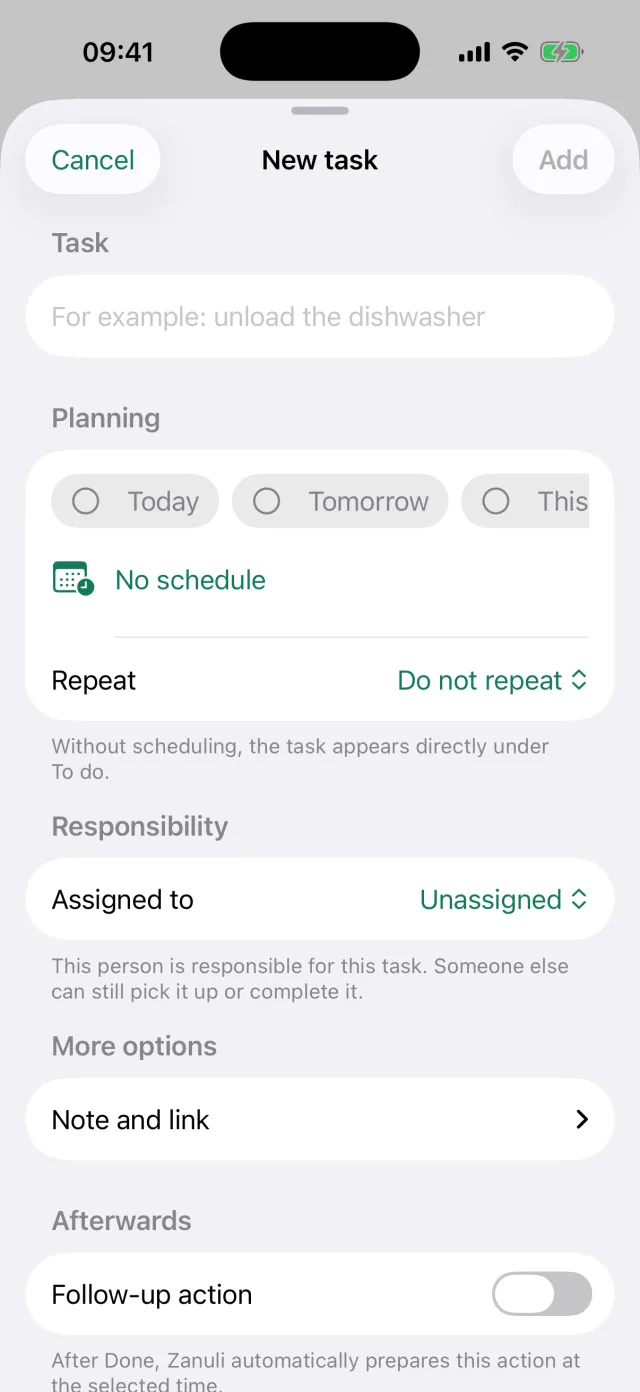
The plus button at the top right opens New task. Only the name is required; every other field may stay empty. A task without planning appears under To do straight away.
The fields
- Task
- The name of the chore, for example ‘Unload the dishwasher’. Up to 240 characters.
- Planning
- Choose Today, Tomorrow, This weekend or your own date and time. With No planning the task appears under To do immediately.
- Repeat
- Let the task return by itself, for example every Monday. That turns the task into a routine.
- Assigned to
- The person responsible. Someone else can still pick the task up or complete it.
- Note and link
- Room for extra context (up to 500 characters) and one web address starting with http or https.
- Follow-up
- Set a follow-up task and timing. Automated routines can offer several follow-up choices; select the right one when completing the task. The screen shows the associated tasks and points.
Good to know If you choose a custom time window, the end must come after the start. A task is only saved when the name is not empty.
03
Picking up, postponing and planning tasks
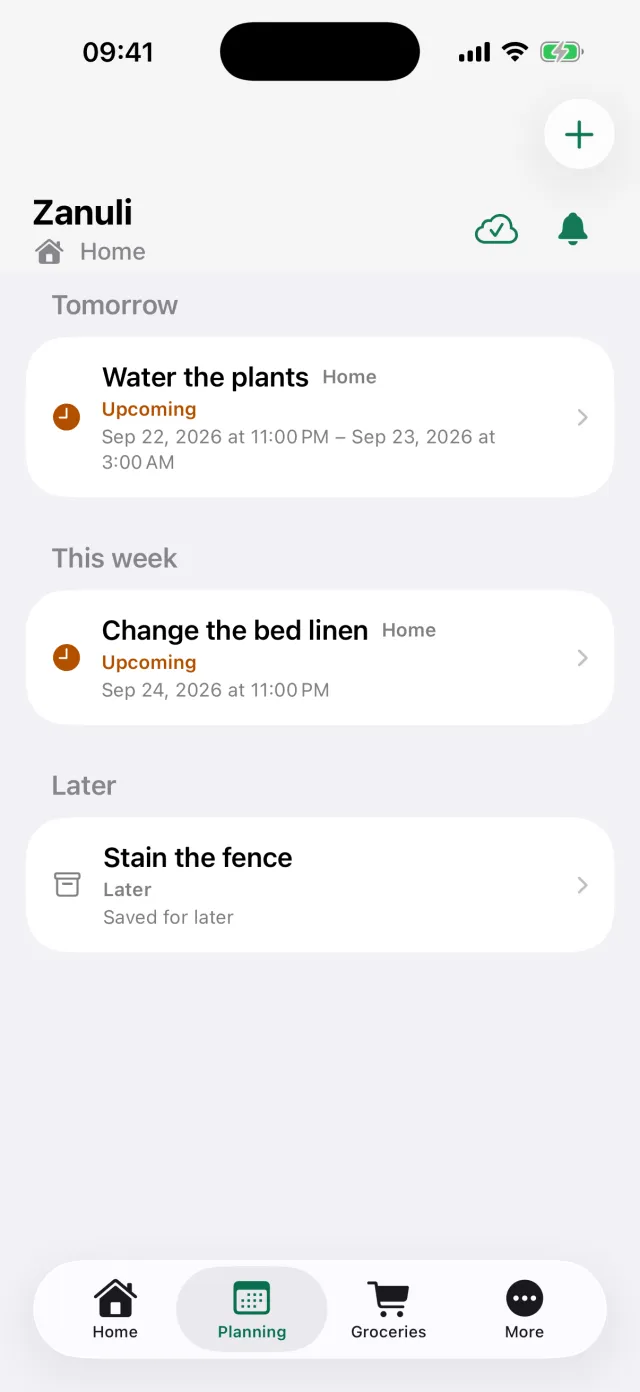
The home screen shows what needs attention now. Tap a task name to open it, or use the buttons and swipes to handle it quickly. The Planning tab shows the same tasks ordered by date, with everything you deliberately parked for later at the bottom.
Step by step
- Complete tasks
Available from Zanuli 1.3.9. Choose Everyone, My tasks or Unassigned. Tap a task name for the same details as in Planning and Search. Done completes it; I’ll take it only claims this occurrence. Undo stays available for five seconds.
The fields
- I’ll take it
- You claim the task. The whole group immediately sees that you are on it. Release hands it back.
- Done
- Swipe left or tap the button to check off. With a routine the task reappears at the next planned moment.
- Waiting for
- Park a task that depends on something or someone. You give a reason and can set a moment to check back.
- Postpone
- Choose when you want to see the task again: a preset or your own moment in the future.
- Skip this time
- Skips only this turn. The routine itself stays in place.
- Pass this turn on
- In a rotation routine the turn moves to the next person in line.
Good to know All actions work with VoiceOver too. Zanuli keeps working without internet for a while: your change is stored locally and synchronised once you are back online.
04
Calendar and weekly planner
See your group’s planned tasks and appointments in one weekly view. Available from Zanuli 1.3.6; update an older app if these buttons are missing.
Step by step
- Open the week
In the app, choose Planning → Weekly planner. On the kitchen display, tap Weekly planner at the top. Use the arrows to move to the previous or next week.
- View or add an item
Tap a task or appointment for details, then Close to return. Use + to choose Add task or Add appointment. Enter the appointment title, times and optional location and note.
- Choose where to save
Under Save to, choose Zanuli or a connected calendar that allows adding appointments. A Zanuli appointment is not automatically copied to Google or iCloud. From Zanuli 1.3.9, edit and delete supported single events from Planning when the shared calendar allows writing. Series, invitations and read-only events remain read-only in Zanuli. Manage those at the provider where permitted, then refresh Zanuli. See Edit and delete events.
- Choose the kitchen display default
As group owner, open + → Default view in the Weekly planner. Choose Task list or Weekly planner and save. This applies to the group’s kitchen displays; Kitchen Display requires Premium for the group.
- Move the start
From Zanuli 1.3.6, changing Start also shifts End, preserving the chosen duration or number of whole days.
- When a calendar is temporarily unavailable
From Zanuli 1.3.6: The weekly overview stays visible when one provider has an outage. Recently retrieved events may remain visible for up to five minutes, with a warning and retrieval time. Without recent data, the planner identifies the missing calendar; an empty day does not then mean nothing is planned. Zanuli retries automatically after the provider’s waiting period. Adding to an unavailable calendar is temporarily disabled; adding to Zanuli remains possible. Reconnect only if the message asks you to.
- Weekly planner in day columns
Available from Zanuli 1.3.7. Update both your phone and kitchen tablet. Dimming was disabled in 1.3.6; this version restores it. From build 202610171200, the kitchen display’s Weekly planner has clearly separated day columns, full day names and larger dates. Today is highlighted in green and weekends have a distinct background. Day headings stay visible while scrolling vertically; tap an appointment or task for details. On the kitchen display only: open Weekly planner for seven day columns with times and a separate all-day row. Swipe sideways on a narrow screen and scroll vertically for other times. Use the week buttons to change weeks. Tap a task or appointment for details and close with Close. The regular app keeps its existing weekly view.
- Open on today
Available from Zanuli 1.3.9. The calendar opens on today in your group’s time zone, even when today is empty. Returning to Planning or reopening the app returns to today. Scroll back to see earlier days; the arrows change weeks. Today takes you straight back. Automatic refresh does not move your reading position.
- Plan together
Available from Zanuli 1.3.9. Open Planning and choose List or Week. Use the arrows to change weeks. With +, add a task, event or maintenance, or dictate something. In All groups, first choose one group for events and meals. Later remains for tasks without a chosen time.
Good to know Appointments do not earn task points. The planner shows scheduled tasks, but does not predict future turns that are only created after completing a routine.
05
Connect Google Calendar
From Zanuli 1.3.6, connect your own Google account to the selected Zanuli group as its owner. You choose which calendars the group and its kitchen displays can see.
Step by step
- Open Calendars
Go to More → Integrations → Calendars and choose Google Calendar at the top. Sign in with Google and review the requested permission. This does not give Zanuli access to your Gmail messages.
- Choose an existing or new calendar
Choose an existing calendar or open Manage connection → Create a new family calendar. A family calendar is a separate calendar in your Google account. Zanuli sends no invitations and does not change Google sharing permissions.
- Choose sharing and adding separately
Enable only the calendar you want to share. Separately allow group members and kitchen displays to add appointments if you wish. Save and refresh the Weekly planner. Private calendars are not shared automatically.
Good to know Google has approved the calendar access requested by Zanuli. You grant permission when connecting and then choose which calendars to share. A work or school account administrator may apply additional restrictions.
06
Connect iCloud Calendar — in testing
The iCloud connection is included from Zanuli 1.3.6. Full testing with a real iCloud account has not yet been completed.
Step by step
- Create an app-specific password
In your Apple Account, go to Sign-In and Security → App-Specific Passwords and create one for Zanuli. Do not use your regular Apple password.
- Enter the details in Zanuli
Open More → Integrations → Calendars → iCloud Calendar. Enter your Apple Account email address and app-specific password only in the secure form. Do not share the password in chat or email.
- Choose a calendar to share
Once connected, choose an existing calendar or create a new family calendar under Manage connection. Separately choose whether the group can add appointments, then save.
Good to know Zanuli stores access credentials encrypted. Only deliberately shared calendars appear in the group and on its kitchen displays.
07
Manage, repair and disconnect calendars
Under More → Integrations → Calendars, connection options appear at the top with connected calendars below. Only group owners manage their own connections; members can view shared appointments and add them when allowed.
Step by step
- Edit
Available from Zanuli 1.3.9. Tap the event and choose Edit. Change title, start, end, location or notes and save. Moving the start also moves the end. The shared calendar must allow writing for an external event.
The fields
- Change sharing
- Tap a calendar to choose whether to share it and allow adding appointments. Save your changes.
- Red calendar or error
- Tap the red row. A window explains the issue and offers the relevant repair action, such as reconnecting. Complete permission and check your calendar sharing choices again.
- Disconnect
- Open Manage connection → Disconnect and confirm. Zanuli removes stored access and stops sharing. After refreshing, appointments disappear from Zanuli; calendars and appointments remain at Google or iCloud.
- No calendar visible
- Check the selected group, connection and sharing choices. Connecting an account without enabling a calendar does not make appointments visible. Outlook/Microsoft is not available yet.
Good to know A loading error does not mean your calendar is empty. If creation of a new calendar is unconfirmed, first check Google or iCloud to see whether it exists; do not immediately create another copy.
08
Tasks and maintenance in an external calendar
From Zanuli 1.3.6, you can also place a task or maintenance task in a shared Google or iCloud calendar. The option is hidden without a connected, shared external calendar. Adding appointments must be allowed in the chosen calendar.
Step by step
- Choose a default for appointments
As group owner, open Planning → Weekly planner → + → Default view. Choose a shared, writable Default external calendar and save. New appointments start with this destination; change it under Save to if needed. Choose each time keeps Zanuli as the initial destination. Existing appointments are not moved.
- Place a task or maintenance task
Open Add task or edit a task. Open Planning and more options if necessary. Enable Also place in external calendar, then choose the calendar, date and All day or start/end. In a maintenance starter set, choose this for each selected task. The switch is initially off.
- Check placement
Save the task. The server also places the event after the app is closed. Reopen the task to see confirmation or a pending status. Its assignee and points remain in Zanuli. A confirmed placement appears once in the Weekly planner.
- Move, complete and repeat
Changes in Zanuli update the same linked event. Completing adds a checkmark to its external title. Each actual next occurrence inherits the choice; no hypothetical series is created ahead. Turning it off removes the managed placement, unless an external change first needs checking.
- Create a task from an appointment
Open an appointment in the Weekly planner and tap Create task. Its name is prefilled; change it if needed and confirm with Create task. The task appears in Planning, where you can assign and complete it. Retrying does not create a duplicate.
Good to know A regular, writable external appointment remains linked to the same task. Name and time changes sync both ways; a confirmed external deletion removes only the open occurrence. Completed history, points and the remaining recurrence are preserved. Conflicting simultaneous changes show a conflict. Connection or permission errors never remove tasks. A Zanuli appointment, invitation, recurring external appointment or read-only calendar creates an independent task. The form explains this; the original appointment does not change with it. Disconnecting leaves appointments with the provider. Private notes and contact details are not copied.
09
Routines and the More menu
A task with a repeat becomes a routine. Under More → Routines you see them all together, including tasks prepared by a connected appliance. More is also the place for your groups, your account, integrations and exporting your data.
Step by step
- Find routines
Available from Zanuli 1.3.9. Planning → Routines and maintenance brings together repeating tasks, maintenance, rotations and smart routines. Maintenance further in the future remains findable here. View routine in task details opens that routine’s settings. Management permissions still depend on your group role.
The fields
- Routines
- All recurring tasks in the group. Free groups have up to two active routines.
- Rotation routine
- Create a rotation routine with +. Choose people, tasks, order and schedule. Manage existing rotations under More → Routines. Skipping or passing on one turn does not automatically change the entire routine.
- Activity
- A timeline of what happened in the group, over a period you choose.
- Statistics
- Completions and confirmed points by person and task, with period selection and details.
- Switch workspace
- Move between your groups when you have more than one.
- Export data
- Download what Zanuli stores about your group.
10
The shopping list
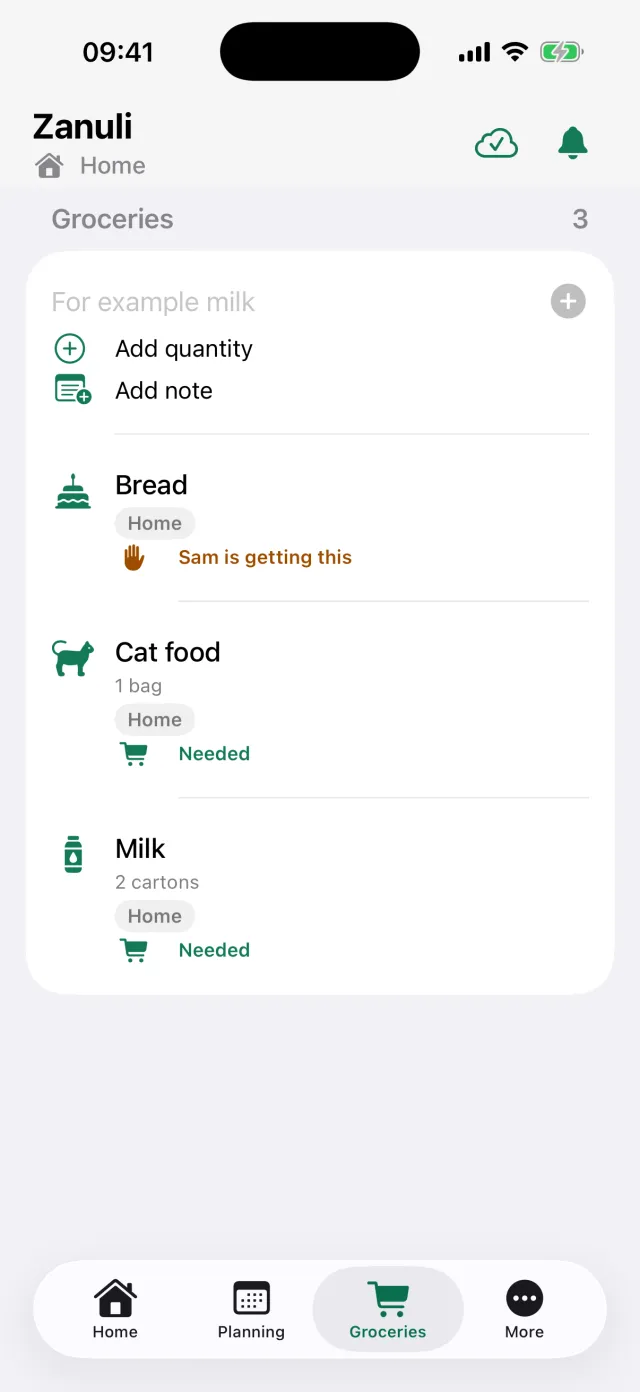
The shopping list belongs to the whole group. Anyone can add to it and everyone sees what is still needed — even when you are already in the shop.
Step by step
- Capture and share
Available from Zanuli 1.3.9. Home offers Speak or type; Groceries offers direct dictation with Groceries as the suggested destination. Check group, destination, text and quantity before confirming. Tap the cloud for sync and confirmation status and Retry. Up-to-date tasks do not prove an external calendar is up to date.
The fields
- Quick add
- Type the name and tap the plus. Zanuli suggests items based on earlier groceries.
- Add quantity
- Optional, for example ‘2 cartons’. You can choose up to 99.
- Add note
- A short clarification, for example a brand or flavour.
- I’ll get this
- Show the group that you are picking it up, so nobody buys it twice.
- Bought
- Swipe left to take the item off the list. Swipe right to delete it.
11
Inbox: capture something quickly
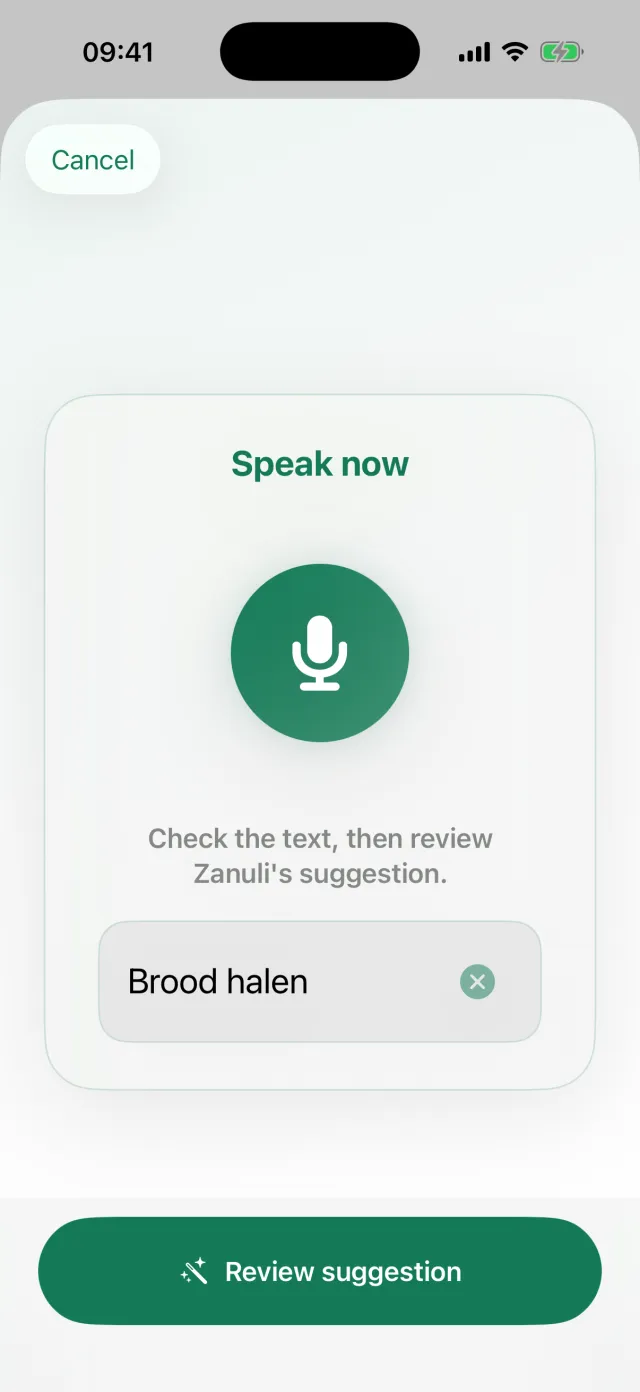
Sometimes you want to note something without turning it into a full task right away. Put it in the Inbox: type it or speak it. You sort the item out later and decide what it becomes.
Step by step
- Capture
Tap Record something or type your note. The app turns speech into text.
- Check
You see the suggestion first and can edit the text before continuing.
- Sort the item
Choose whether it becomes a task, a grocery item or a Waiting for item, and add planning or quantity if needed.
- Or keep it
Leave the item in the Inbox until you have time for it.
Good to know Dictated text is used as the task name and follows the same limit of 240 characters.
12
Your group, members and people
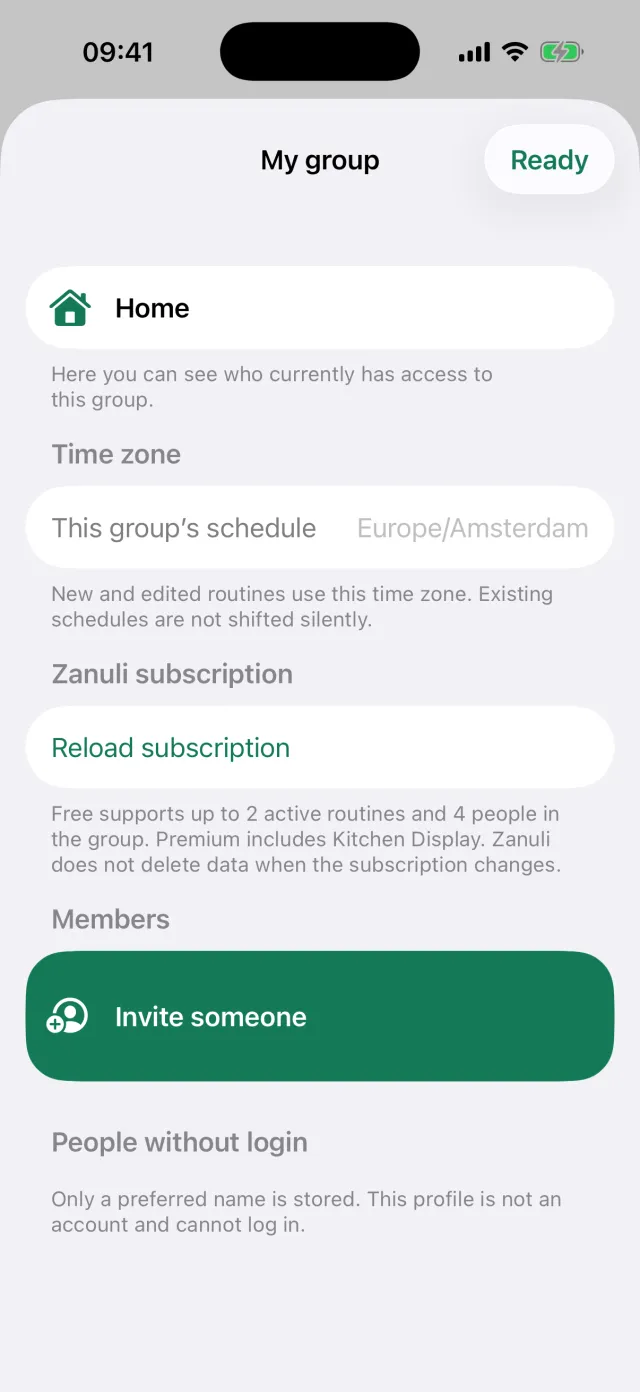
Under More → My group you manage who belongs to the group. There are two kinds of participants: members with their own account, and people without a login — children, for example — who can receive tasks but cannot sign in themselves.
The fields
- Invite someone
- Creates a QR code and a code you can share. An invitation can be used once and is valid for seven days.
- Members
- Everyone with their own account. The owner can make a member an administrator or remove them.
- People without a login
- Only a first name (up to 80 characters) is stored. This is not an account and cannot sign in.
- Planning for this group
- The time zone routines are planned in. Only the owner can change it; existing arrangements do not shift silently.
- Zanuli subscription
- Shows the current status and limits, plus the button to view or try Premium.
- Shared devices
- This is where you pair an iPad as a kitchen display.
Good to know Free supports two active routines and four group people. Premium applies per group rather than per person, and adds unlimited routines, the kitchen display and the integrations.
13
Pairing a kitchen display
Available from Zanuli 1.3.7. From build 202610171000, the tablet displays the QR code and the phone confirms the group. Update both devices for this flow. The tablet does not need a personal account.
Step by step
- Start on the tablet
Open Zanuli without signing in and choose Set up kitchen display → Show QR code on this tablet.
- Scan with the phone
On your signed-in phone, open More → My group → Shared devices → Pair kitchen display. Choose Scan the QR code on the tablet. The regular phone camera can also open the Zanuli link.
- Confirm the group
Check the display, choose a group you manage and tap Confirm pairing. A single group is preselected; confirmation is still required.
- Keep the tablet open
After confirmation, the tablet opens as a kitchen display automatically. Both devices need internet access. The QR code is valid for ten minutes. Create a new code on the tablet if it expires.
The fields
- Pair a tablet again
- From build 202610171100: revoke the old tablet pairing on your phone under More → My group → Shared devices. Keep the tablet online; after its next check it returns to the start screen. Choose Set up kitchen display and show a new QR code. The group and saved tasks remain. Unsent actions from the revoked tablet are discarded. Losing internet alone does not remove the pairing.
- Older app version
- In earlier builds, the phone still creates the code under More → My group → Shared devices. Scan or paste it in the pairing window on an older tablet. On an updated tablet, choose Use an older pairing code. Already paired tablets keep working; no new pairing is needed.
- Invitation to pair a display
- Available from Zanuli 1.3.7. From build 202610170900. When opening the regular app, the group owner may see an invitation if the selected group has no paired display. Choose Pair your display now to scan the QR code on the tablet, or Later to continue. The wording varies. On this device, the same account sees it at most once every seven days, even when switching groups. A paired display that is temporarily offline still prevents the invitation. No invitation appears when the connection check fails.
- Good to know
- Pairing is free; an active kitchen display requires Premium for the group. The waiting period starts when the invitation appears, including if you close the app or cancel setup afterwards. This is an in-app message, not a push notification. The waiting period is stored on this device and does not automatically transfer to another device. If you previously chose No, this update first gives you seven quiet days. Manual pairing remains available under More → My group → Shared devices.
Good to know You need an iPad with iPadOS 17 or later, internet and Premium for the group. Without active Premium the pairing is kept, but the iPad does not show the overview.
14
Using the kitchen display
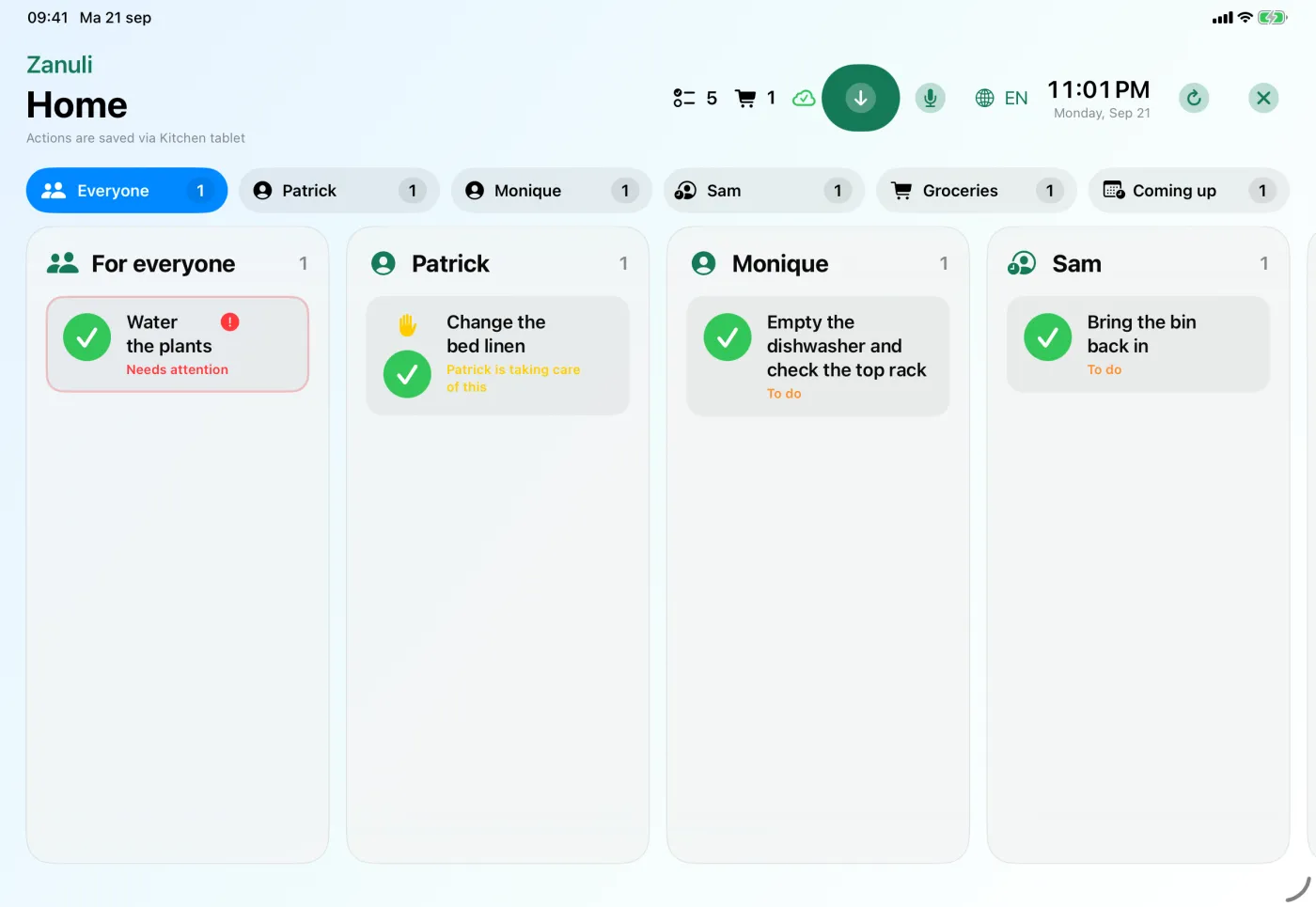
The kitchen display shows tasks per person side by side, plus columns for groceries and for what is coming up. Anyone walking past sees at a glance what still needs doing and can check it off right there.
The fields
- Columns
- Everyone holds the tasks that are not assigned yet. Each person also gets their own column.
- Done
- Check a task off on the display itself. Undo reverses that immediately.
- Groceries
- The shared list is visible and extendable from the kitchen display too.
- Record something
- Use the microphone button to add a task or grocery without typing.
- Language
- The kitchen display has its own language setting, independent of the phones in the house.
- Unlock management
- Protects the settings, so the display can simply stay in the kitchen.
- Move items
- Hold an eligible task and drag it to a highlighted column. Check the destination and confirm Move. For Coming up, choose Available from. Moving does not complete a task; for recurring tasks the assignment may also apply to future occurrences. Shopping items and rotation tasks cannot be dragged this way.
- Automatic dimming
- Available from Zanuli 1.3.7. Update both your phone and kitchen tablet. Dimming was disabled in 1.3.6; this version restores it.
15
Integrations: Shelly and Home Connect
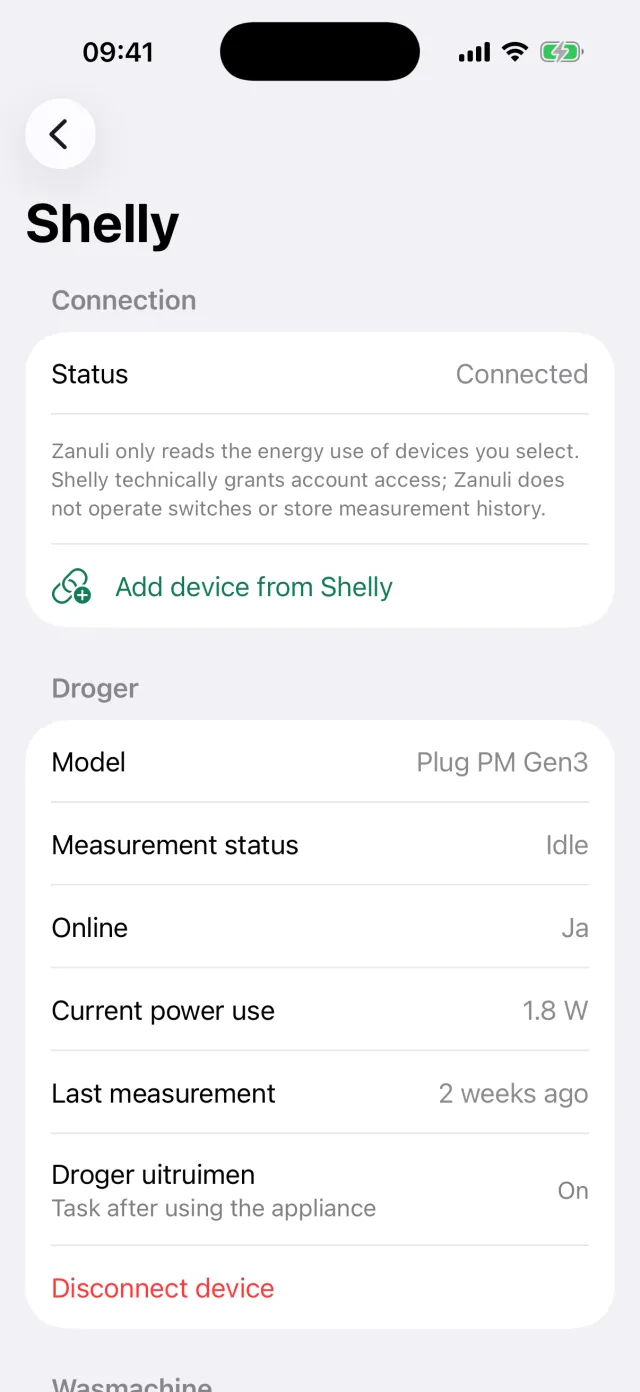
Zanuli can turn a finished appliance into a shared task. You decide which appliance takes part; Zanuli does not operate your appliances and never flips a switch.
The fields
- Shelly
- A Shelly Plug PM Gen3 measures the consumption of, for example, the washing machine. Zanuli recognises a finished cycle and can then prepare a task such as ‘Hang the laundry’.
- Minimum running time
- Prevents a short peak from counting as a wash. Adjustable from 1 to 360 minutes.
- Home Connect
- Links a compatible dishwasher. After a confirmed programme end a task such as ‘Unload the dishwasher’ appears.
- Maintenance signals
- Notices about salt or rinse aid can automatically become a task as well.
- Task name and timing
- For each appliance you decide what the task is called and when it appears.
- Automation enabled
- Switch the automatic task off temporarily without breaking the connection.
Good to know Home Connect is not generally released for all users; availability depends on provider approval and the access shown in Zanuli. Use only the offered devices and events. Shelly is independent of that approval. Creating an automation requires Premium and the appropriate group permissions.
16
Account, name and language
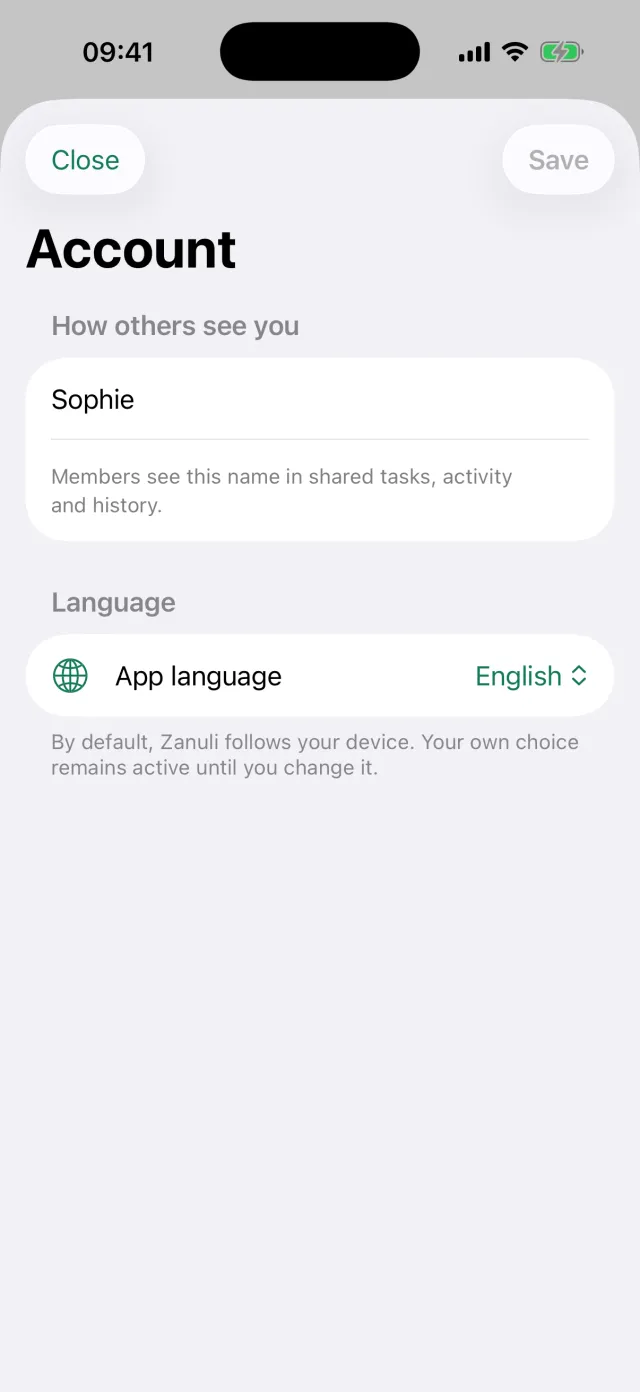
Under More → Account you manage your name and the app language. These are personal settings; they do not change the language of other group members or the kitchen display.
The fields
- How others see you
- Your display name, up to 80 characters. Members see this name on shared tasks, activity and history.
- App language
- The preferred language chosen on the welcome screen is your initial setting. Here you can choose another language or follow your device language.
- Your location
- Determines how the kitchen display adapts to sunrise and sunset.
- Switch account
- Sign in with another account without reinstalling the app.
- Delete account
- Removes your account. This step asks for a confirmation.
17
Statistics: who did what and when?
Open More → Statistics for completions by person and task. Counts and confirmed points are separate: points do not measure hours worked.
The fields
- Period
- Choose This week, Previous week, This month, Quarter or Choose period. Select a year for a quarter, or start and end dates for a custom period. Dates use the group time zone.
- Who
- View Everyone or select one person. Tap a name under By person to view their tasks and completions.
- By task
- Tap a task to see who completed it and when. You can also open its statistics from the task details.
- Counts and points
- Registered completions count unless excluded. Only confirmed points count in the points total. An empty period does not mean someone has never completed a task.
- Default points
- Group administrators set task values and manage name variants. Previously earned points are retained.
Good to know Use this overview to discuss the work. It records what is entered in Zanuli; work done outside the app is not automatically measured.
18
Default points and duplicate task names
Available from Zanuli 1.3.2.
Give a task a fixed value so you do not have to score each completion again. This also covers automatic tasks and reusable follow-up steps.
Step by step
- Choose the task
As a group administrator, open More → Statistics → Default points. Find a task, check the included name variants, choose 1, 2 or 3 points and save.
- Link another name
Identical names and known variants are grouped. Use Link another name to confirm another name means the same task. Zanuli remembers this within your group and task type. Forget name link removes that association.
- Directly on a routine or appliance
Edit routine and Shelly or Home Connect tasks also offer Default points per completion. Check the listed tasks before saving one value for the whole name group.
Good to know Saving affects future completions, not points already earned. Tasks and their history are retained. New tasks with a remembered name keep their own points until you save the name group together.
19
Apple Watch: tasks and groceries
Available from Zanuli 1.3.5.
The Watch app works through your paired iPhone. You do not need a separate Zanuli account on the watch. watchOS 10 or later is required.
Step by step
- Start on your iPhone
Sign in to Zanuli on the paired iPhone and choose your group. Then open Zanuli on the Watch. The watch shows tasks from that context.
- Complete tasks and tick off groceries
Tick off a task on the Watch. When groceries are outstanding, Groceries appears at the top. Open the list and mark what you bought.
- Syncing
Syncing means the server has not confirmed completion yet. Open Zanuli on the iPhone and check the connection. Saved actions are retried when possible. The Watch has no standalone server connection; follow rejected-action messages on the iPhone.
Good to know The Watch receives at most 50 items per transfer. Use the iPhone for the full overview.
20
Widgets and quick voice capture
The Zanuli widget shows a saved overview of your active group. Open the app and select the right group before using the widget.
Step by step
- Add and use the widget
Add the Zanuli widget from your iPhone or iPad Home Screen. Small, medium and large views are available. Tap an item to open it; use a displayed action button to complete a task or grocery item.
- Voice capture from the widget
From 1.3.6, the medium widget has a microphone button. It opens voice capture for the right group in Zanuli. Recording only starts after you tap record and grant permission. Check the recognised text before saving.
Good to know Widget voice input: Available from Zanuli 1.3.6. iOS controls widget refresh timing; it is not a continuously live display. Open Zanuli if information is stale.
21
Example tasks and maintenance starters
Available from Zanuli 1.3.6.
Start from examples and choose only tasks that suit your home. Nothing is added without your selection and confirmation.
Step by step
- Add maintenance task
From Zanuli 1.3.6: open + on Home or Planning and choose Add maintenance task to see maintenance options directly. Enable the switch to the right of a task name. Then edit its name, date and recurrence. None are selected beforehand. More → Choose example tasks still offers all starter sets.
- Custom maintenance task
Choose Custom task at the top for a blank form. Enter your own task name and choose a first date. Recurrence and contact details are optional. Confirming adds only this custom task; selected examples are excluded from this choice.
- Plan maintenance
Choose recurrence and enable Choose date. Set the required first date under First occurrence. Follow the appliance manual or your maintenance provider’s advice for timing. Tap anywhere on Contact details to enter company, contact person, phone, email and website. Comments has a separate text field. Contact details and comments are saved together as a note (up to 500 characters); the website is saved as a link. After saving, open the task and choose More options → Note and link to change these details.
- Review and add
Review your selection and add the tasks. The chosen name, schedule, note and link are saved with each task. Edit an existing task when maintenance changes instead of adding the same example again.
22
Updating the app and viewing new features
Available from Zanuli 1.3.5.
Zanuli checks for a newer public App Store version when opening and returning from the background. A TestFlight build is not a public update.
Step by step
- Update now
Under More → App → Version, New version available / Update now appears when a newer version is found. It opens the App Store. You can dismiss an update popup with Later. Zanuli does not install updates itself or force the app to close.
- See what is new
After updating, you can view new features once. They also remain under More → New features with a link to the full changelog. Automatic updates while the app is closed are controlled by iOS and your App Store settings.
- Your installed version
Available from Zanuli 1.3.9. More → App → Version shows the installed version and build number. More → New features shows the same version, its changes and manual links. Full changelog opens the website at your version. A newer website entry does not install an app update.
Good to know Apple may distribute a release gradually. You can keep using Zanuli offline or during a Store error; a missing button then does not prove no update exists.
23
Sync, help and your data
A local change and server confirmation are different. If in doubt, check sync status before assuming everyone can see the change.
Step by step
- Red cloud or error
Check internet and the selected group, refresh and read the error. A red cloud means sync is failing. Do not delete or reinstall the app to fix it: unsent actions may remain.
- Report a problem
Use More → Give feedback and describe the screen, action and result. Find your version under More → App. Do not share passwords, pairing codes or private calendar content. Getting started guidance can be reopened under Help with your first task.
- Export or delete your account
More → Export data creates a shareable JSON file. Keep it private. Delete account is under More → Account and requires confirmation; read the consequences there. Deleting an account is not the same as cancelling an App Store subscription.
- Capture and share
Available from Zanuli 1.3.9. Home offers Speak or type; Groceries offers direct dictation with Groceries as the suggested destination. Check group, destination, text and quantity before confirming. Tap the cloud for sync and confirmation status and Retry. Up-to-date tasks do not prove an external calendar is up to date.
24
Manage and dim the kitchen display
Available from Zanuli 1.3.7. Update both your phone and kitchen tablet. Dimming was disabled in 1.3.6; this version restores it.
Step by step
- Set a management code
As the group owner, open More → Account → Kitchen display → Management code in the regular app. Enter six digits twice and save. The code applies to all kitchen displays in this group. A new code replaces the previous one; your iPad passcode stays unchanged. From build 202610171200, this page shows the code on the phone used to set it, while you remain a group owner. It is stored securely on that device and is not automatically copied to other phones. An existing code cannot be retrieved: set it again once to see it here. If changed on another device, the old local code is no longer shown.
- Adjust brightness
Open Manage on the kitchen display and enter the code. Choose day, evening and night brightness. Extra dimming defaults to 01:00–06:00 at 2% brightness. Change the times and brightness, or disable automatic dimming. Save; other displays in the group pick up changes in about a minute. Times use the group’s time zone.
- Touch and return
From build 202610171300, Manage opens its own panel with six dots, large number buttons and a delete button. Then tap Unlock. Without a correct code confirmed in time, the panel closes ten seconds after opening, even with digits entered. Above the day columns, larger Previous week and Next week arrow buttons appear alongside the full week range and This week. When the screen is dark, the first tap only brightens it; tap again to open a task or appointment. Choose brightness and duration after touch. Management stays readable while editing and locks after three minutes without interaction. Five wrong codes cause a fifteen-minute wait; the group owner can set a new code in the regular app. Leaving kitchen mode still requires the existing administrator sign-in.
- Weekly planner in day columns
From build 202610171200, the kitchen display’s Weekly planner has clearly separated day columns, full day names and larger dates. Today is highlighted in green and weekends have a distinct background. Day headings stay visible while scrolling vertically; tap an appointment or task for details. On the kitchen display only: open Weekly planner for seven day columns with times and a separate all-day row. Swipe sideways on a narrow screen and scroll vertically for other times. Use the week buttons to change weeks. Tap a task or appointment for details and close with Close. The regular app keeps its existing weekly view.
Good to know Dimming only reduces screen brightness while Zanuli is visible; it does not enable iPadOS Low Power Mode. Previous brightness is restored on exit. With a configured place, base brightness follows daylight; otherwise fixed times apply. Previously confirmed settings remain usable for up to seven days during temporary internet loss.
25
Your own recipes and recipe links
Available from Zanuli 1.3.9.
Save recipes with your group, choose them for a meal and add only the ingredients you need to Groceries. The planned recipe also opens on the Kitchen Display.
Step by step
- Save a recipe
Select one group and open Planning → Recipes → Add recipe. Enter a name and number of people. Add ingredients with quantities and confirm each with Add ingredient. Enter preparation steps, a full http/https recipe link, or both. Choose Save. Everyone in the same group can view, edit and delete recipes.
- Link to a meal
Open Plan meal, choose a day and tap Choose recipe. Open the recipe and select Use this recipe. The name and ingredients are filled in; adjust quantities yourself if needed. Changing the number of people does not automatically scale quantities. Save the meal. Each group can plan one meal per day.
- Choose groceries
Open the saved meal and choose Ingredients for groceries. Select what you need and confirm Add. An open grocery with the same name and quantity is skipped. Quantities are not added together. Editing or deleting a recipe or meal does not change groceries already added.
- Read while cooking
On the paired Kitchen Display, open the Week Planner and tap the meal. Read ingredients, quantities and preparation steps. Open original recipe shows the saved website; Close takes you back. Recipe links do not automatically import text or ingredients. The website requires internet and may have its own access requirements.
- Planned recipes stay saved
Zanuli saves the chosen recipe version with the meal. Later changes or deletion in Recipes do not change that meal. Choose the recipe again to use newer content. Unlink recipe keeps the meal’s ingredients. If saving fails, retry the same action; if someone changed the recipe meanwhile, close and reopen the form.
26
Your day, tasks and routines
Available from Zanuli 1.3.9.
Home is your daily overview. Planning shows tasks and events together immediately. The four main tabs remain.
Step by step
- Complete tasks
Choose Everyone, My tasks or Unassigned. Tap a task name for the same details as in Planning and Search. Done completes it; I’ll take it only claims this occurrence. Undo stays available for five seconds.
- Plan together
Open Planning and choose List or Week. Use the arrows to change weeks. With +, add a task, event or maintenance, or dictate something. In All groups, first choose one group for events and meals. Later remains for tasks without a chosen time.
- Find routines
Planning → Routines and maintenance brings together repeating tasks, maintenance, rotations and smart routines. Maintenance further in the future remains findable here. View routine in task details opens that routine’s settings. Management permissions still depend on your group role.
- Capture and share
Home offers Speak or type; Groceries offers direct dictation with Groceries as the suggested destination. Check group, destination, text and quantity before confirming. Tap the cloud for sync and confirmation status and Retry. Up-to-date tasks do not prove an external calendar is up to date.
- Management and first use
More has fixed entries for Kitchen Display and Calendars. Choose one group first; only authorized managers can pair a display. An empty new group gets first-task guidance; the invitation to start together appears only where appropriate and can be dismissed.
- Open on today
Available from Zanuli 1.3.9. The calendar opens on today in your group’s time zone, even when today is empty. Returning to Planning or reopening the app returns to today. Scroll back to see earlier days; the arrows change weeks. Today takes you straight back. Automatic refresh does not move your reading position.
27
Edit and delete events
Available from Zanuli 1.3.9.
Manage supported single events from Planning. The source calendar stays the same; no second event is created.
Step by step
- Edit
Tap the event and choose Edit. Change title, start, end, location or notes and save. Moving the start also moves the end. The shared calendar must allow writing for an external event.
- Deletion and conflicts
Delete event asks for confirmation and also removes the supported event from the selected external calendar. Series, invitations and read-only events remain read-only. If the event has changed, reload the current version instead of blindly overwriting it. A connection failure keeps the form for retry.
28
Search tasks and routines
Available from Zanuli 1.3.9.
Search finds task titles and notes in the selected group, including retained completed tasks.
Step by step
- Search
Tap the magnifying glass on Home or Planning, or choose Search under More. Choose one group when you have several. Search for a word and filter All, To do or Done. Load more results fetches the next page.
- Results and connection
A loaded task opens normal task details. Older history shows retained data. Without a server connection, only loaded tasks appear with an incomplete-results warning. Deleted history cannot be retrieved.
29
Temporary absence from a rotation
Available from Zanuli 1.3.9.
Explicitly hand over turns during an absence without rewriting the regular order or completed history.
Step by step
- Prepare a proposal
Go to Planning → Routines and maintenance → Manage rotations. Open the routine and Temporary absence. Choose the absent person, replacement and start/end dates, up to 90 days ahead. A regular member can arrange only their own absence; a manager can select others.
- Review and stop
View proposal shows exactly which turns change. Then confirm. An already claimed turn must first be released; intervening changes require a new proposal. The regular order resumes after the end date. Stop absence applies to future turns not yet created; existing handovers stay with the replacement. Past completions and points are retained.
30
Plan meals and select groceries
Available from Zanuli 1.3.9.
Plan one meal per day for the selected group. Add ingredients with quantities and choose what goes on the shopping list.
Step by step
- Save a meal
Choose Plan meal in Planning. Enter day and name. Add each ingredient with Add ingredient before choosing Save. Open an existing meal to edit or delete it. A meal does not automatically become a Google or iCloud event.
- Ingredients to shopping
Open the saved meal and choose ingredients for shopping. Select only what is needed and confirm Add. An open item with the same name and quantity is skipped. Different quantities remain separate, not automatically added together. Deleting a meal does not remove groceries. The shopping list remains usable in older app versions.
Zanuli
Still stuck?
Send us a message on the support page. From the app you can also use More → Give feedback.
Go to support